This blog post explains one of the approaches for automating file export/import between a remote secure FTP site and local folder. This is one of the common scenarios which we come across when data transfer has to be take place between third party organisations. The secure FTP will ensure data security over the network.
The package for the scenario looks like below
 The package consists of three simple steps - a data flow task to the actual data export to flat file, script task to create script file for dynamic FTP and an execute process task to do the actual FTP.
The secured FTP upload/download is not supported by default in SSIS using FTP task. Hence we've to make use of third party client for it.
In this example, I'm using a free client known as WinSCP (http://www.winscp.net/eng/index.php) for performing the SFTP operation. One good thing about WinSCP is that it has a command line tool WinSCP.com associated to it which we can programatically invoke from the Execute Process Task. It takes a script file as an argument which will have the credentials about the site to which we need to do FTP and also the required operation to be done.
The scenario is like at regular intervals we need the delta data (changes since last interval) to be exported to a flat file and then file to be uploaded to secured FTP site. So the filename will keep on changing and will include the timestamp information. So we need to generate the script file at runtime based on filename generated. This is done inside the script task by means of .NET code. The script task will look like below

As you see from the above the task builds script on the fly by passing UserName,Password,URL,Port,Destination Folder and FileName from the variables. The variables except filename can be set via configuration so as to improve flexibility and enable smooth migration of package across various environments.
The filename is generated dynamically by means of an expression to include current timestamp as below
@[User::DirectoryPath] + "\\data_export_" + REPLACE((DT_WSTR, 30) (DT_DBDATE) GETDATE(),"-","_") + "_" + RIGHT("00" +(DT_WSTR, 2) DATEPART( "HH",GETDATE() ) ,2)+ "_" + RIGHT("00" +(DT_WSTR, 2) DATEPART( "MI",GETDATE() ),2) + "_" + RIGHT("00" +(DT_WSTR, 2) DATEPART( "SS",GETDATE() ) ,2)+ ".txt"
The DirectoryPath variable holds the folder path to which files are to be generated.
The Execute Process task looks like below

The script file and working folder can be made dynamic by including an expression in task expressions tab using expression builder as follows

Once this package is executed the file will get generated and exported to secured FTP location dynamically. You can check that by running the WinSCP client UI tool and connecting to the FTP server and you should see the generated file in the preset location.

Similar approach can be followed in doing file download from secured FTP location in which case only change in script would be to use get command rather than put to retrieve the file from the FTP location
That I'm leaving for readers to try it out. Feel free to post back any questions you may have.
EDIT: I've attached a sample package to illustrate SFTP upload using SSIS and WinSCP for a group of files
here as per the request from readers
https://drive.google.com/file/d/0B4ZDNhljf8tQXzNVLW5HMFlzWms/edit?usp=sharing
It creates the script file dynamically based on your file list as per the path specified by the ScriptFilePath variable.
Once downloaded change the variable values to reflect correct values as in your case like SFTP server name,username, password, portnumber, script file path etc and then try executing this.
You should have a SFTP server setup prior to this using openssh or similar tools and should have installed WinSCP client including COM utility which is what the package uses.
The package for the scenario looks like below

The secured FTP upload/download is not supported by default in SSIS using FTP task. Hence we've to make use of third party client for it.
In this example, I'm using a free client known as WinSCP (http://www.winscp.net/eng/index.php) for performing the SFTP operation. One good thing about WinSCP is that it has a command line tool WinSCP.com associated to it which we can programatically invoke from the Execute Process Task. It takes a script file as an argument which will have the credentials about the site to which we need to do FTP and also the required operation to be done.
The scenario is like at regular intervals we need the delta data (changes since last interval) to be exported to a flat file and then file to be uploaded to secured FTP site. So the filename will keep on changing and will include the timestamp information. So we need to generate the script file at runtime based on filename generated. This is done inside the script task by means of .NET code. The script task will look like below

As you see from the above the task builds script on the fly by passing UserName,Password,URL,Port,Destination Folder and FileName from the variables. The variables except filename can be set via configuration so as to improve flexibility and enable smooth migration of package across various environments.
The filename is generated dynamically by means of an expression to include current timestamp as below
@[User::DirectoryPath] + "\\data_export_" + REPLACE((DT_WSTR, 30) (DT_DBDATE) GETDATE(),"-","_") + "_" + RIGHT("00" +(DT_WSTR, 2) DATEPART( "HH",GETDATE() ) ,2)+ "_" + RIGHT("00" +(DT_WSTR, 2) DATEPART( "MI",GETDATE() ),2) + "_" + RIGHT("00" +(DT_WSTR, 2) DATEPART( "SS",GETDATE() ) ,2)+ ".txt"
The DirectoryPath variable holds the folder path to which files are to be generated.
The Execute Process task looks like below
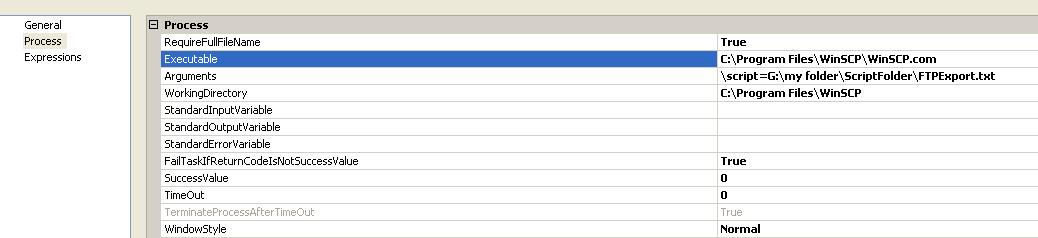
The script file and working folder can be made dynamic by including an expression in task expressions tab using expression builder as follows

Once this package is executed the file will get generated and exported to secured FTP location dynamically. You can check that by running the WinSCP client UI tool and connecting to the FTP server and you should see the generated file in the preset location.

Similar approach can be followed in doing file download from secured FTP location in which case only change in script would be to use get command rather than put to retrieve the file from the FTP location
That I'm leaving for readers to try it out. Feel free to post back any questions you may have.
EDIT: I've attached a sample package to illustrate SFTP upload using SSIS and WinSCP for a group of files
here as per the request from readers
https://drive.google.com/file/d/0B4ZDNhljf8tQXzNVLW5HMFlzWms/edit?usp=sharing
It creates the script file dynamically based on your file list as per the path specified by the ScriptFilePath variable.
Once downloaded change the variable values to reflect correct values as in your case like SFTP server name,username, password, portnumber, script file path etc and then try executing this.
You should have a SFTP server setup prior to this using openssh or similar tools and should have installed WinSCP client including COM utility which is what the package uses.


Could please send the detail.
ReplyDeleteMeans Script file and Variables.
The script file is shown in the post itself. The variables used inside script needs just to be created inside your package.
ReplyDeleteThanks for your helping.
ReplyDeleteI am fresher. i don't know how create the variables.
Please send me screen shots.
option batch abort
# Disable overwrite confirmations that conflict with the previous
option confirm off
# Connect using a password
# open sftp://MPesa:OXIVMP@123@10.6.11.101:22
# Connect
open sftp://MPesa:OXIVMP@123@10.6.11.101:22
# Change remote directory
cd /MPesa
# Force binary mode transfer
option transfer binary
# Download file to the local directory d:\
# format timestamp
put D:\SCW_Reports\SCW_Bill_Desk_Report_Oxigen\*.csv
# Disconnect
close
exit
I ran the above script through Execute process task. It's working fine. I want the Date & Time stamp files files copy into Sftp server script.
Thanks in Advance
Srini
what do you mean by "I want the Date & Time stamp files files copy into Sftp server script."? Can you explain that?
ReplyDeleteAs for the creation of variables its pretty straightforward.
Right click anywhere inside package body and choose variables in menu. Variable window pops up. Click on leftmost button to add a variable. you can select datatype within datatype combobox and set a default value for it too if you want.
The only other thing to note is to include those variables as read only or read write inside the corresponding properties in script task and then variables will be available in code inside for you to use as per screenshot shown.
When we deploy SSIS in Project Deploy Model it just hangs at the EPT step launching WinSCP. Works fine calling WinSCP utility in dev at design time run, however when deploying to server and SSIS job it hangs. Any ideas how to get around?
ReplyDeleteSo is this package called from a master package or executed on its own? Did you check if you're getting any error in event log? Also are you using a proxy or std service account to run it from job? Please specify version of SSIS used as well and also SSDT version used to deploy the project
Delete